
Manual
Manual
How to Use Jepster (Currently Under Construction)
Welcome to our guide on how to use Jepster! We are in the process of creating detailed instructions and helpful tips to ensure you have the best experience possible. Please bear with us as we work on this section, and stay tuned for updates. Thank you for your patience!
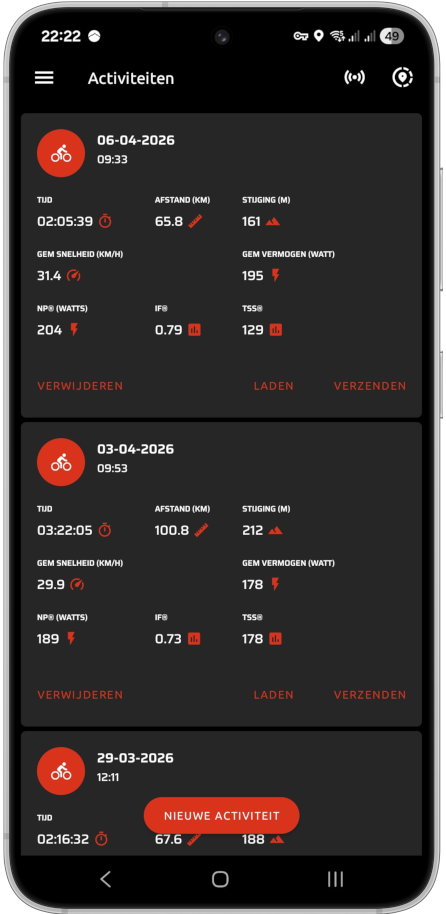
Activity feed
The last 10 activities are shown in the activity feed (your FIT files are stored forever on your internal memory). If no activity is present, a nice picture taken from the Alp d'Hueze is shown. There are 3 actions available for your activities: 1) UPLOAD, 2) LOAD and 3) DELETE.
- Activities can be send to Strava or TrainingPeaks.
- Activities can be loaded (this can take a while) to continue your ride.
- Activities can be deleted (this will delete the activity from the database and the .fit file).
Activity pages
ap There are four different views with multiple data pages per view: Data, Map, Graphs and Workout.
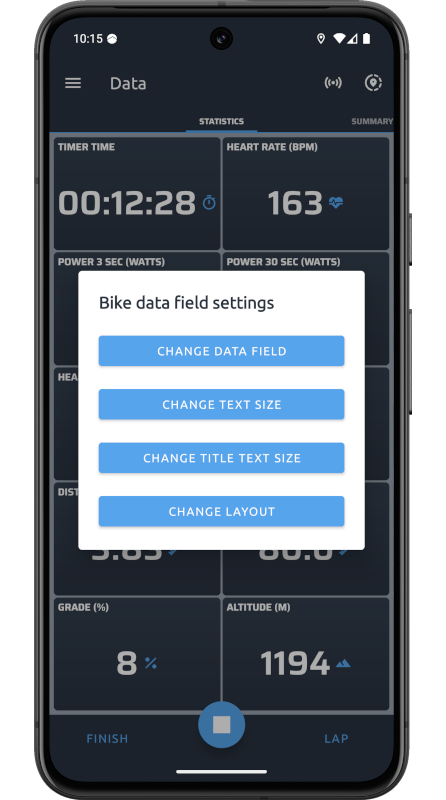
For each bike (4 bikes can be configured) page settings (e.g. number of data fields, data field value and text sizes) can be customized by long pressing a data field. A dialog will be opened with the options. Note that the layout will change dynamically but it is limited to some constraints.
Data does have four types of pages:
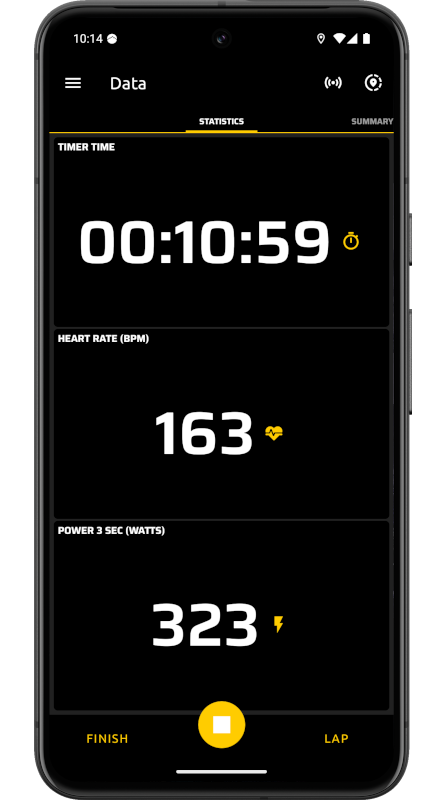
- Statistics: up to 16 editable data fields
- Summary: up to 16 editable data fields
- Lap statistics: up to 16 editable data fields
- Lap summaries: no editable data fields, predefined with 9 data fields per lap
Maps does have five types of pages:
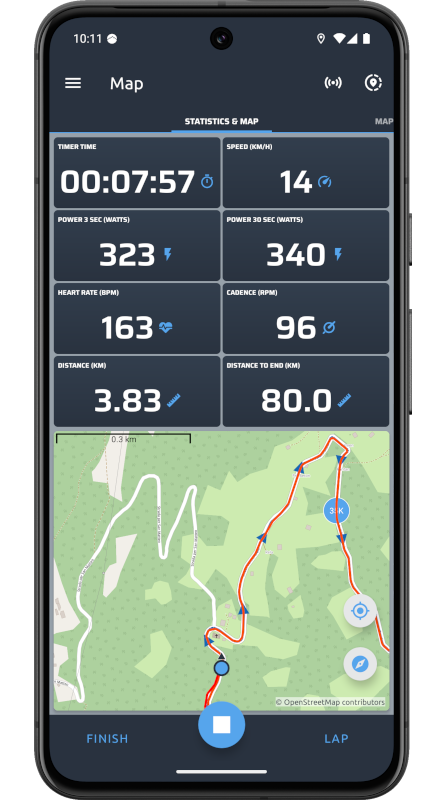
- Map & statistics: up to 16 editable data fields
- Map: big map
- Elevation: up to 16 editable data fields
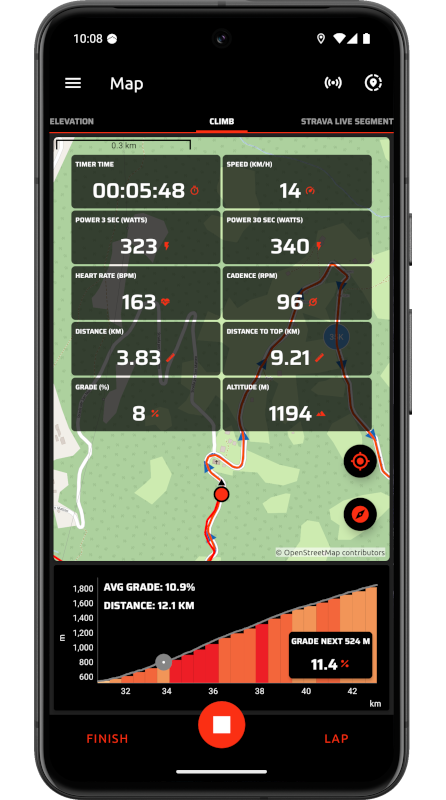
- Climb: up to 16 editable data fields
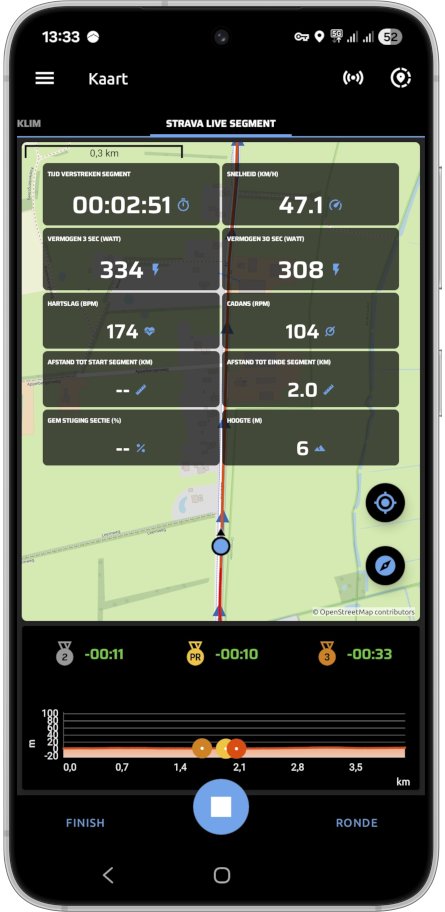
- Strava Live Segments: up to 16 editable data fields
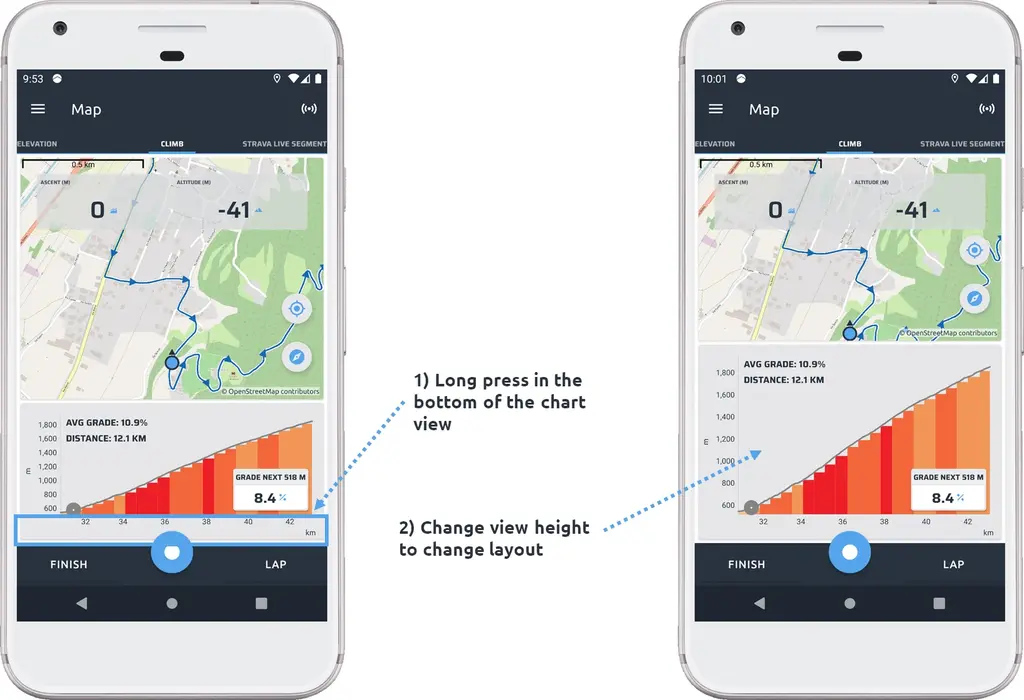
The size of the climb chart and Strava Live Segment box can be adjusted on the climb or Strava Live Segment page. Long press the bottom of the view of the chart or box to get the menu to change the height of the view. Select a value between 0 (not visible) to 100% (fully visible, no map and data fields).
Graphs does have four types of pages:
- Elevation chart: up to 16 editable data fields
- Speed chart: up to 16 editable data fields
- Heart rate chart: up to 16 editable data fields
- Power chart: up to 16 editable data fields
Workout does have four types of pages:
- Workout overview: overview of workoutsteps and description
- Workout: workout data view with the workoutsteps
- Workout & map: workout data view with a map
- Workout statistics: workout data view with up to 16 editable data fields
Activity buttons
To be done
Strava / TrainingPeaks integration
To be done
Strava Live Segments
To be done
Offline maps
To be done
Sensors
To be done
Routes
To be done
Upload
To be done
Settings
To be done
Supporter
To be done
Exit
To be done